
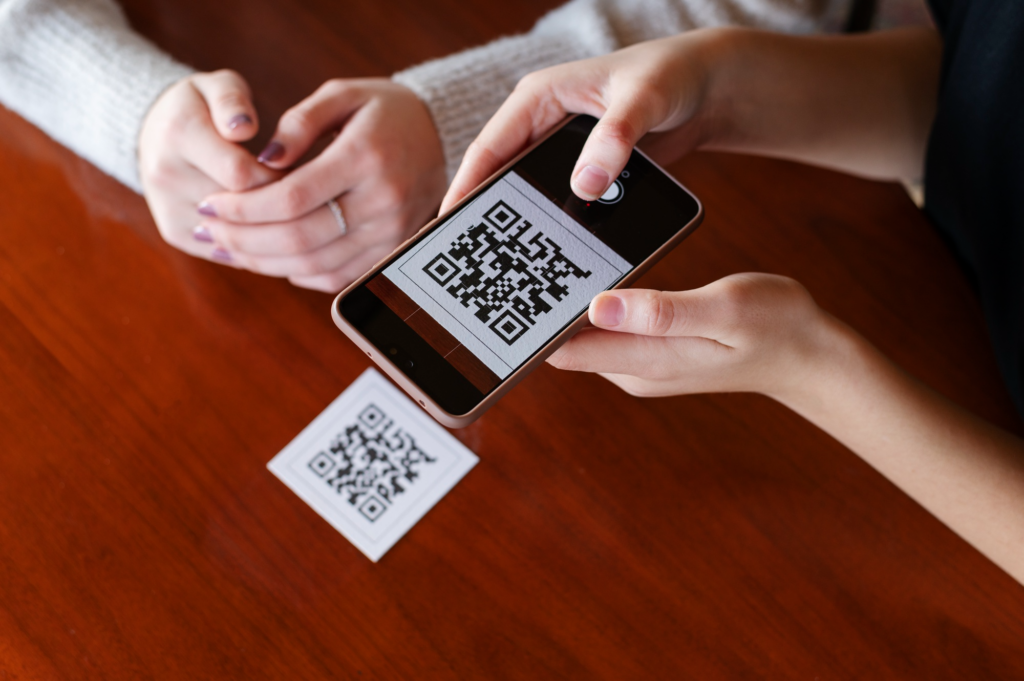
Manual setup can slow teams down when users need to open internal tools, connect devices, follow support links, or copy configuration details. A well-placed QR code gives people one direct path to the right page. This helps reduce typing errors and keeps setup instructions easier to follow.
Using QR Codes to Store and Share Configuration Data
Configuration data may include Wi-Fi details, login pages, app links, device manuals, onboarding notes, support contacts, and setup guides. Instead of sending these details across several messages, teams can place the most important resource behind one scan.
A free QR code generator is useful when information needs to be available from a device sticker, printed guide, office wall, welcome sheet, or email. This is especially practical when the same instructions are repeated for many users.
|
Setup Need |
QR Destination |
|
Device setup |
Configuration guide |
|
Wi-Fi access |
Network details page |
|
App onboarding |
Download or login page |
|
Support request |
Help form or contact page |
This table shows how QR access can simplify common setup points. Each code should lead to one useful destination, so users know what to do after scanning.
QR Codes for Quick Setup of Devices and Services
QR codes can simplify setup for routers, printers, payment terminals, classroom tools, demo accounts, and internal platforms. Users scan the code and land on the exact page they need instead of typing a long address.
When a team wants to test a setup flow before a wider rollout, ME-QR provides a QR code generator that can turn technical links into scannable access points. This is useful for printed labels, shared workspaces, user guides, and onboarding materials.
The code is only one part of the process. The page behind it should be short, readable, and suitable for mobile use. Before using a QR code maker, it helps to define what the user should do right after scanning:
- open the correct setup page without extra searching;
- connect to Wi-Fi or a device service faster;
- download the right app or internal tool;
- view a short guide with clear next steps;
- contact support if setup cannot be completed.
This works best when each code has one clear purpose. If one scan leads to too many unrelated options, the setup may become confusing again. For larger teams, a dynamic QR generator helps keep these access points easier to update as services change.
Reducing Manual Input Through Scannable System Links
Manual input is one of the easiest ways to create mistakes in technical workflows. One wrong character in a link, access path, or setup address can stop the process and send the user back to support.
A QR code generator online is useful for remote or distributed teams that need to prepare setup materials quickly. A manager can create a code for a configuration page, test it, and share it before printed labels, user guides, or event materials are produced.
A QR code creator can also reduce support pressure by turning long system links into a quick scan. Teams can create QR code access points for many devices, product batches, user groups, or internal pages without asking users to copy complex addresses.
Conclusions
QR codes do not replace clear documentation, but they make access to that documentation faster and more accurate. For system access projects, ME-QR adds dynamic editing, scan analytics, branded design, bulk creation, API integrations, and custom domains. These features help teams keep technical links updated and easier to manage after launch.
FAQ
How do QR codes help with system setup?
They give users quick access to setup pages, guides, forms, or app links without manual typing.
Where can setup QR codes be placed?
They can be placed on device labels, office boards, printed guides, welcome sheets, and training materials.
What should a setup QR code link to?
It should link to one clear page, such as a guide, login page, support form, or configuration document.